5.31.2023

Nemesis: A Packet Injection Utility


"Nemesis is a command-line network packet injection utility for UNIX-like and Windows systems. You might think of it as an EZ-bake packet oven or a manually controlled IP stack. With Nemesis, it is possible to generate and transmit packets from the command line or from within a shell script. Nemesis attacks directed through fragrouter could be a most powerful combination for the system auditor to find security problems that could then be reported to the vendor(s)." read more...

Website: http://www.packetfactory.net/projects/nemesis

Continue reading


OWASP Web 2.0 Project Update

Some of you likely recall the talk back in 2016 or so of updating the OWASP Foundation website to not appear so much like a...well, a wiki.  That talk was carried forward into 2017 and 2018 and, with each year, the proposal got pushed ahead as there were other, deeper projects to tackle.  With the arrival of 2019 and a firm project plan under the guidance of Mike McCamon, Executive Director, we are finally moving toward a functioning, modern website that will be a whole lot less...wiki-like.  The journey has been circuitous and, while we are not anywhere near complete, we have a set plan in place to bring it to fruition within the calendar year (second quarter of the year, actually).

TLDR: How Can You Help? 

There are certainly ways in which you can get involved now.  For instance, we are looking for a clean way to get wiki pages into GitHub markdown format for archival.  I have done some work here but there are parsing issues with some of the tools.  Do you know a good tool or have you done similar work?  Also, are you or do you know a good designer, someone familiar with GitHub pages that can provide some useful help and feedback along the way?  A Jekyll expert to help code a theme with a handful of templates would be a great addition.  In addition, we could use website server admins who could help with assigning redirects to maintain search integrity.  Finally, there will be a great many pages to move that we will also eventually need community involvement in.  

So, What Have We Done? 

Thus far we have researched various ideas for standing up a new site, including modifying the current wiki, spinning up our own web server, contracting a third party to host and build a new site, and also using existing infrastructure with our own content to launch a new face for OWASP.  Our discussions led us to a familiar place, one that nearly every developer in the OWASP space is familiar with: GitHub.   

In our conversations with GitHub, it became readily apparent that using the platform would be a win for the Foundation as well as GitHub.  Nearly everyone who runs a project at OWASP (documentation or otherwise) uses GitHub.  Because our target audience is also mostly developers we know that they are also very comfortable with the platform.  And while GitHub has a number of high profile companies using their GitHub Pages, the use of the platform as the basis for the entire website of the number one non-profit foundation in the application security sector is a big draw.

We have run with that GitHub Pages idea and have spent internal manpower on a proof of concept.  This proof of concept is less about the UX of the site than the functionality, the ability to utilize the authentication systems, and the ability to utilize automation to push out changes quickly.

Where Are We Now?

We are doing the final stages of website architecture. We are also planning what needs to be in the site, how the pieces will integrate with current projects and chapters, and how we might utilize the community to integrate the pieces so that we have a visually and functionally cohesive website that spans across multiple repositories.

What Is Next?

We will soon be looking for a modern website design that is responsive and clean.  We will begin using the knowledge gained from our proof of concept to build out the internals of the website and then we will start implementing the highest traffic pages and administrative areas into the new platform.  Once we have the big-ticket items moved we will start looking at what is left and moving over those pieces.  The eventual goal would be to have a new, modern website for the future of OWASP while keeping the wiki as an archive of really useful information.


We hope you are as excited as we are about the future of the OWASP Foundation website and will join us as we move toward a modern web presence.  If you have any questions or would like to volunteer your time, experience or knowledge, please contact me at harold.blankenship@owasp.com

More info


15 Important Run Commands Every Windows User Should Know

There are several ways to efficiently access the files, folders, and programs in Windows operating system. We can create shortcuts, pin programs to the taskbar, Start menu shortcuts etc. but we can't do it for all programs in many cases. However, the Windows Run Command box is one of the most efficient ways of accessing system programs, folders, and settings.

In this article, I am going to share 15 most important Run commands for Windows users. These commands can make it easier to manage a lot of tasks.
How to open Windows Run command box?
You need to press Win+R (Hold Windows button then Press R)

Important Run Commands Every Windows User Should Know

1. %temp%
This is the fastest way to clear the temporary files from your computer. It can save a lot of space which was being wasted by temporary files.
2. cmd 
This command will open the windows DOS command prompt. Windows command prompt is very useful for performing many tasks which are not possible using graphical user interface.
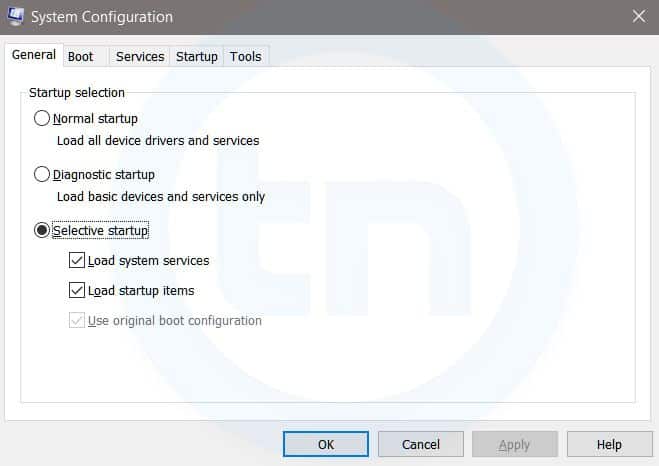
3. MSConfig
Windows Run Command - MSconfig-compressed
Windows System Configuration
This command will open Windows System Configuration where you can edit different things like the boot options, startup options, services, etc.
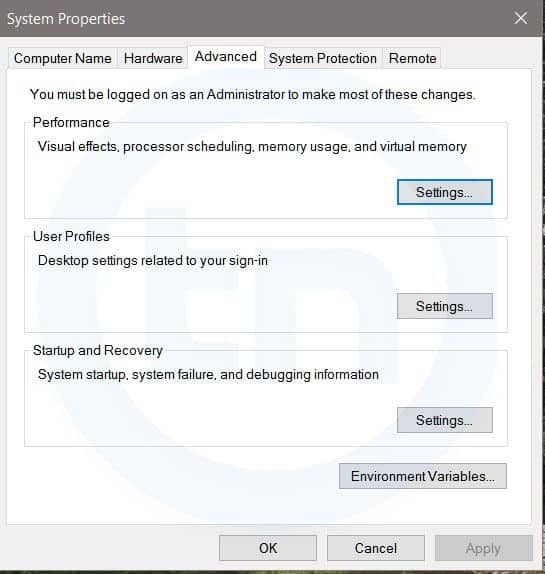
4. sysdm.cpl
Windows Run Command - sysdm cpl-compressed
System Properties window
This command will open the System Properties window, Where you can change the system protection and performance related many settings
5. Powershell
Powershell is very similar the command prompt. Just type this command in the Run dialog box, and you will have your PowerShell opened without administrator privileges.
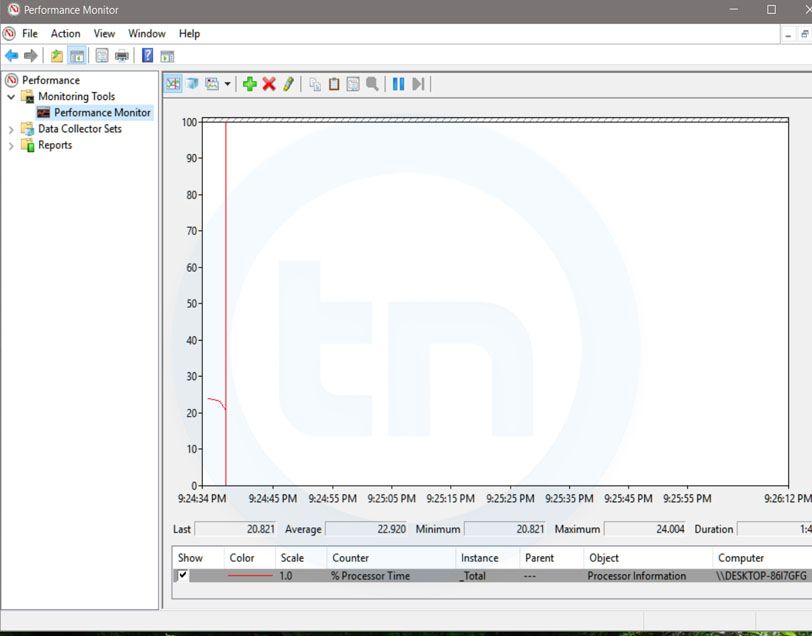
6. perfmon.msc
Windows Run Command - perfmon msc-compressed
Windows System Performance monitor
This command can be used to monitor the performance of your computer. There are plenty of options for monitoring the system performance
7. regedit
Regedit Run command is used to open the Windows Registry. It is a hierarchical database that hosts all the configurations and settings of Windows operating system, it's users and the installed software.
8. \ (Backslash)
This is one of the lesser known Run commands. Just enter the backslash into the Run dialog box and it will open up the C drive. It is one of the quickest ways to access the C drive.
9. . (Dot)
This is yet another lesser known Run command. When executed, it opens the current user's home folder which hosts all the other local folders like the Downloads, Documents, Desktop, Pictures, etc.
10. .. (Double Dots)
When you execute these two dots in the Run dialog box, it will open up the Users folder which is located directly on the C drive
11. Control
This command will open the control panel. Control panel is used for managing all the system settings and programs
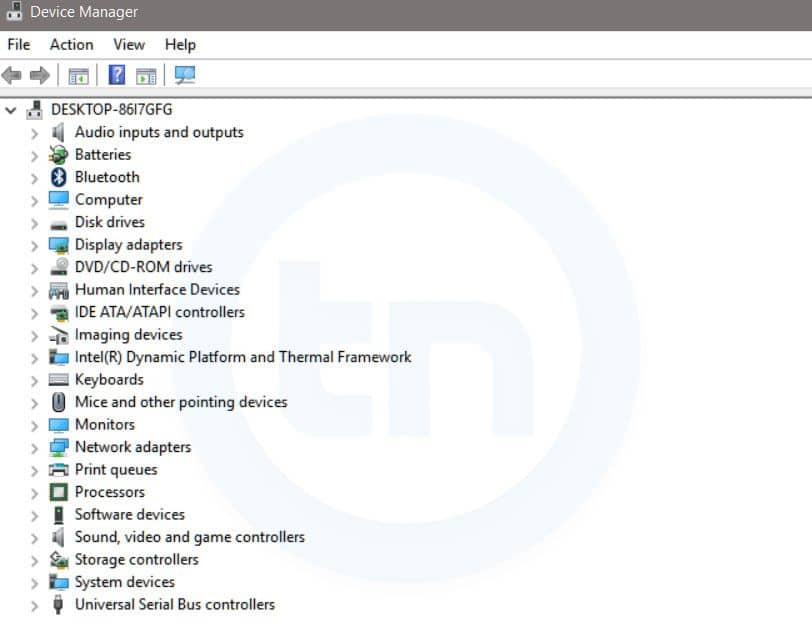
12. hdwwiz.cpl
Windows Run Command - hdwwiz-
Windows Device Manager
This command is used to open the Device Manager in Windows. You can manage all the device connected internally or externally to your PC.
13. Notepad
The quickest way to open notepad in Windows. Just type this command in Run Box and hit enter.
14. osk
This command will open On-Screen Keyboard on your display monitor. You can easily touch and type or use your mouse for typing.
15. taskmgr 
This command will open task manager where you can manage all the processes and programs running on Windows Operating system.

Continue reading


5.30.2023

Linux Command Line Hackery Series - Part 6


Welcome back to Linux Command Line Hackery series, I hope you've enjoyed this series so far and would have learned something (at least a bit). Today we're going to get into user management, that is we are going to learn commands that will help us add and remove users and groups. So bring it on...

Before we get into adding new users to our system lets first talk about a command that will be useful if you are a non-root user.

Command: sudo
Syntax: sudo [options] command
Description: sudo allows a permitted user to execute a command as a superuser or another user.

Since the commands to follow need root privileges, if you are not root then don't forget to prefix these commands with sudo command. And yes you'll need to enter the root password in order to execute any command with sudo as root.

Command: useradd
Syntax: useradd [options] username
Description: this command is used for creating new user but is kinda old school.
Lets try to add a new user to our box.
[Note: I'm performing these commands as root user, you'll need root privileges to add a new user to your box. If you aren't root then you can try these commands by prefixing the sudo command at the very beginning of these command like this sudo useradd joe. You'll be prompted for your root password, enter it and you're good to go]

useradd joe

To verify that this command has really added a user to our box we can look at three files that store a users data on a Linux box, which are:

/etc/passwd -> this file stores information about a user separated by colons in this manner, first is login name, then in past there used to be an encrypted password hash at the second place however since the password hashes were moved to shadow file now it has a cross (x) there, then there is user id, after it is the user's group id, following it is a comment field, then the next field contains users home directory, and at last is the login shell of the user.

/etc/group  -> this file stores information about groups, that is id of the group and to which group an user belongs.

/etc/shadow -> this file stores the encrypted password of users.

Using our command line techniques we learned so far lets check out these files and verify if our user has been created:

cat /etc/passwd /etc/group /etc/shadow | grep joe


In the above screenshot you can notice an ! in the /etc/shadow, this means the password of this user has not been set yet. That means we have to set the password of user joe manually, lets do just that.

Command: passwd
Syntax: passwd [options] [username]
Description: this command is used to change the password of user accounts.
Note that this command needs root privileges. So if you are not root then prefix this command with sudo.

passwd joe


After typing this command, you'll be prompted password and then for verifying your password. The password won't show up on the terminal.
Now joe's account is up and running with a password.

The useradd command is a old school command, lets create a new user with a different command which is kinda interactive.

Command: adduser
Syntax: adduser [options] user
Description: adduser command adds a user to the system. It is more friendly front-end to the useradd command.

So lets create a new user with adduser.

adduser jane


as seen in the image it prompts for password, full name and many other things and thus is easy to use.

OK now we know how to create a user its time to create a group which is very easy.

Command: addgroup
Syntax: addgroup [options] groupname
Description: This command is used to create a new group or add an existing user to an existing group.

We create a new group like this

addgroup grownups


So now we have a group called grownups, you can verify it by looking at /etc/group file.
Since joe is not a grownup user yet but jane is we'll add jane to grownups group like this:

addgroup jane grownups


Now jane is the member of grownups.

Its time to learn how to remove a user from our system and how to remove a group from the system, lets get straight to that.

Command: deluser
Syntax: deluser [options] username
Description: remove a user from system.

Lets remove joe from our system

deluser joe

Yes its as easy as that. But remember by default deluser will remove the user without removing the home directory or any other files owned by the user. Removing the home directory can be achieved by using the --remove-home option.

deluser jane --remove-home

Also the --remove-all-files option removes all the files from the system owned by the user (better watch-out). And to create a backup of all the files before deleting use the --backup option.

We don't need grownups group so lets remove it.

Command: delgroup
Syntax: delgroup [options] groupname
Description: remove a group from the system.

To remove grownups group just type:

delgroup grownups


That's it for today hope you got something in your head.
Related news

  1. Ethical Hacker Tools
  2. Hacking Tools Usb
  3. Pentest Tools Download
  4. Hacking Tools
  5. Hack Tool Apk No Root
  6. Hacking Tools For Beginners
  7. Pentest Tools
  8. Free Pentest Tools For Windows
  9. Hacker Tool Kit
  10. Usb Pentest Tools
  11. Hacking Tools Windows 10
  12. Hacker Tools Apk Download
  13. Hacking Tools Download
  14. Tools Used For Hacking
  15. Hacking Tools For Windows
  16. Hacking Tools 2019
  17. Hack And Tools
  18. Easy Hack Tools
  19. Black Hat Hacker Tools
  20. Usb Pentest Tools
  21. Hacker Tools 2019
  22. Hacking Tools Usb
  23. Hacker Hardware Tools
  24. Hacking Tools Hardware
  25. Hacking Tools Download
  26. Pentest Tools Online
  27. Pentest Tools Github
  28. Free Pentest Tools For Windows
  29. Hacking Tools Mac
  30. Hacking Tools 2020
  31. Wifi Hacker Tools For Windows
  32. Hacker Security Tools
  33. Hacking Tools Github
  34. Pentest Tools Subdomain
  35. Hackers Toolbox
  36. Hacking Tools Hardware
  37. Hacker Tools Software
  38. What Is Hacking Tools
  39. Hacking Tools For Kali Linux
  40. Hackrf Tools
  41. Physical Pentest Tools
  42. Hack Tools For Pc
  43. Pentest Tools Android
  44. Computer Hacker
  45. Wifi Hacker Tools For Windows
  46. Tools 4 Hack
  47. Pentest Tools Android
  48. Hacker Security Tools
  49. Hacking App
  50. Hack Website Online Tool
  51. Hacker Tools For Windows
  52. Hacker Tools
  53. Pentest Tools Website
  54. Hacking Tools For Kali Linux
  55. Hacker Tools For Windows
  56. Hack Website Online Tool
  57. Hacking Tools Mac
  58. Termux Hacking Tools 2019
  59. Hacking Tools Github
  60. Pentest Tools Framework
  61. Hacker Search Tools
  62. How To Make Hacking Tools
  63. Hacker Tools Free Download
  64. Free Pentest Tools For Windows
  65. Hacking Tools Online
  66. Pentest Tools Tcp Port Scanner
  67. Tools For Hacker
  68. Physical Pentest Tools
  69. Pentest Tools
  70. Hack Tools Download
  71. Hacking Apps
  72. Pentest Tools Tcp Port Scanner
  73. Tools For Hacker
  74. What Are Hacking Tools
  75. Hacking Tools For Windows
  76. Hacker Tools
  77. Hacking App
  78. Hacking Tools Mac
  79. Pentest Tools Subdomain
  80. Hack Tools For Mac
  81. Tools 4 Hack
  82. Hack And Tools
  83. Hacker Tools Mac
  84. Hack Tools For Pc
  85. Pentest Tools Website Vulnerability
  86. Pentest Tools Bluekeep
  87. Hacker Tools Github
  88. Pentest Recon Tools
  89. How To Install Pentest Tools In Ubuntu
  90. What Is Hacking Tools
  91. Hacker Tools List
  92. Pentest Recon Tools
  93. Pentest Tools Alternative
  94. Hacker Tools Hardware
  95. Hacking Tools Windows 10
  96. Hack Tools For Pc
  97. Pentest Tools Free
  98. Hacker Tools Hardware
  99. Hacking Tools 2020
  100. Hacking Tools Kit
  101. Pentest Tools Free
  102. Pentest Tools Open Source
  103. Pentest Tools Url Fuzzer
  104. Pentest Tools Find Subdomains
  105. Pentest Tools List
  106. Github Hacking Tools
  107. Hacker Tools
  108. Hack Tool Apk
  109. Hack Apps
  110. Hackrf Tools
  111. Pentest Tools Windows
  112. Black Hat Hacker Tools
  113. Pentest Tools Website Vulnerability
  114. Hacking App
  115. Pentest Tools For Windows
  116. Termux Hacking Tools 2019
  117. How To Install Pentest Tools In Ubuntu
  118. Hacker Search Tools
  119. Hacking Tools Online
  120. Hacking Tools For Windows
  121. Hacking Tools Windows
  122. Termux Hacking Tools 2019
  123. Hacker Tools Apk
  124. Pentest Tools Download
  125. Hacker Tools
  126. Hackrf Tools
  127. Wifi Hacker Tools For Windows
  128. Hacking Tools For Mac
  129. Hacking App
  130. Kik Hack Tools
  131. Hack Tools 2019
  132. Github Hacking Tools
  133. Game Hacking
  134. Hacker Tools Software
  135. Pentest Tools Download
  136. Hacking Tools Pc
  137. Pentest Tools Alternative
  138. Pentest Tools Kali Linux